
News·
Content Extraction with Tinq.ai
Learn how to efficiently extract and analyze web content using Tinq.ai's Article Extractor, both through API and a simple web interface. This guide also shows how to integrate the tool with other Tinq.ai features for a powerful content workflow.

The only AI workspace you need
In today's digital age, the ability to efficiently extract and analyze web content is invaluable for researchers, marketers, developers, and content creators.
Tinq.ai's Article Extractor offers a powerful solution to this challenge, providing both an API and a user-friendly web interface. This tutorial will guide you through using both methods and explore how to integrate the Article Extractor with other Tinq.ai tools for a comprehensive content analysis workflow.
Part 1: Using the Tinq.ai Article Extractor API
The API allows for programmatic access to the article extraction functionality, perfect for integrating into your own applications or scripts.
Step 1: Setting Up
Before you begin, ensure you have:
- A Tinq.ai account with API access
- Basic knowledge of making HTTP requests (we'll use curl in our examples, but you can use any programming language)
Step 2: Constructing the API Request
The API endpoint is:
https://tinq.ai/api/v2/extract-article
You'll need to send a POST request with the following headers:
accept: application/json
content-type: application/json
The request body should be a JSON object with the extract_url key:
{
  "extract_url": "https://example.com/your-article-url"
}
Step 3: Sending the Request
Here's an example using curl:
curl --request POST \
     --url https://tinq.ai/api/v2/extract-article \
     --header 'accept: application/json' \
     --header 'content-type: application/json' \
     --data '
{
  "extract_url": "https://example.com/your-article-url"
}
'
For a more comprehensive documentation with other programming languages and frameworks, please check our documentation.
Step 4: Processing the Response
The API will return a JSON object containing:
- Article title
- Main text content
- Top image
- Canonical link
- Domain
- Links within the article
- Open Graph metadata
- Keywords and tags
- Images and videos
Here's a snippet of what the response might look like:
{
  "article": {
    "title": "Your Article Title",
    "top_image": {},
    "canonical_link": "https://example.com/your-article-url",
    "domain": "example.com",
    "article": "The main text content goes here...",
    "links": [
      {
        "url": "https://example.com/related-link",
        "text": "Related article"
      }
    ],
    // ... more fields ...
  },
  "usage": {
    "requests_left": 9903,
    "credits_left": 102000
  },
  "errors": [],
  "success": true,
  "status_code": 200
}
Part 2: Using the Tinq.ai Article Extractor Web Interface
For those who prefer a graphical interface or want to quickly extract content without coding, Tinq.ai provides a user-friendly web interface.
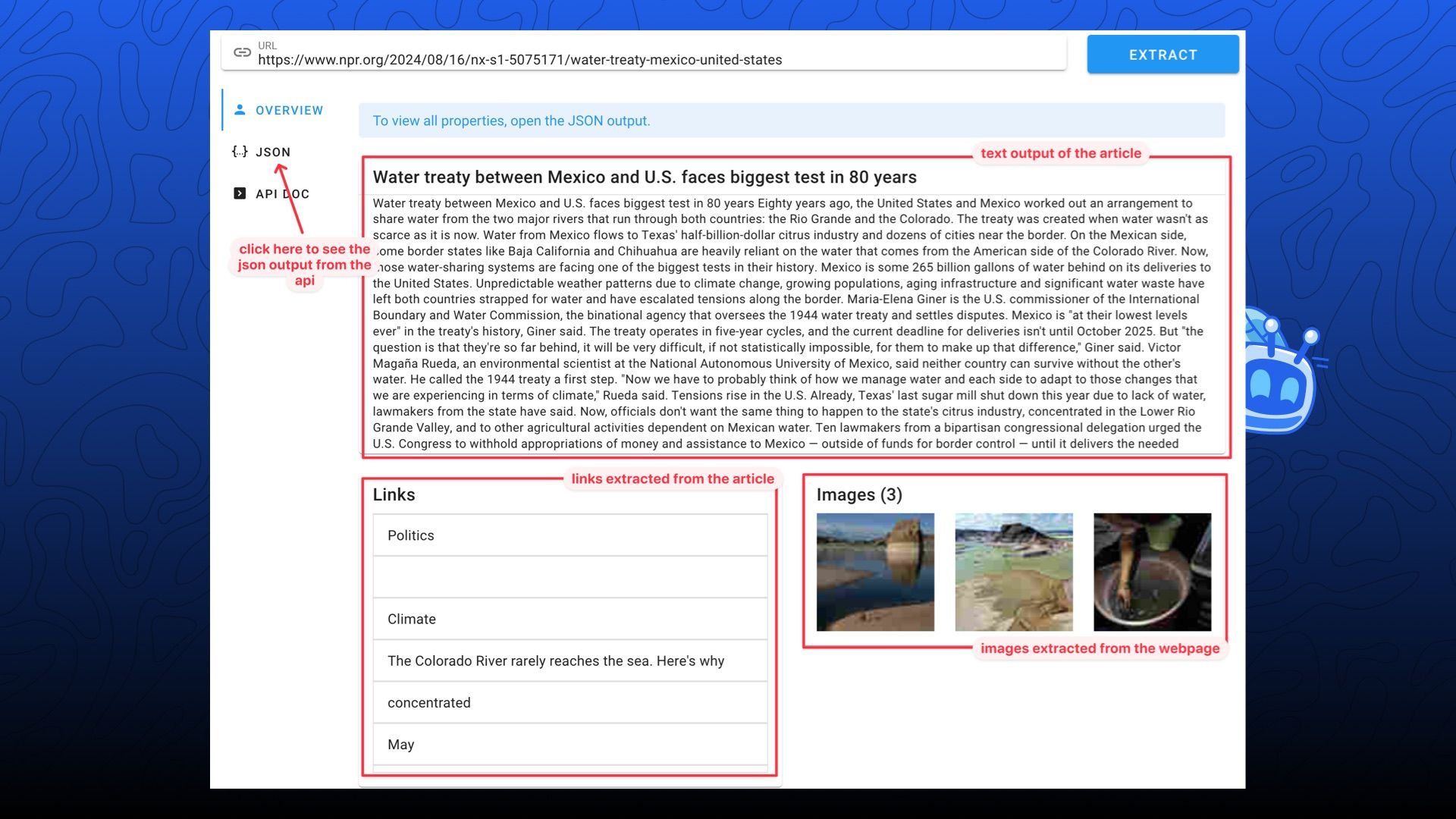 #### Step 1: Accessing the Interface
Navigate to the Tinq.ai Article Extractor page (you may need to log in to your account).
Step 2: Entering the URL
Locate the URL input field at the top of the page. It's clearly marked and typically the most prominent feature on the interface.
Step 3: Initiating Extraction
Enter the URL of the article you wish to extract and click the "EXTRACT" button. This will start the extraction process.
Step 4: Reviewing Extracted Content
The interface will display the extracted content in several sections:
- Text Output: This is the main body of the article, stripped of HTML and formatting.
- Links: A list of hyperlinks found within the article.
- Images: Thumbnails of images extracted from the webpage.
Step 5: Accessing Full JSON Output
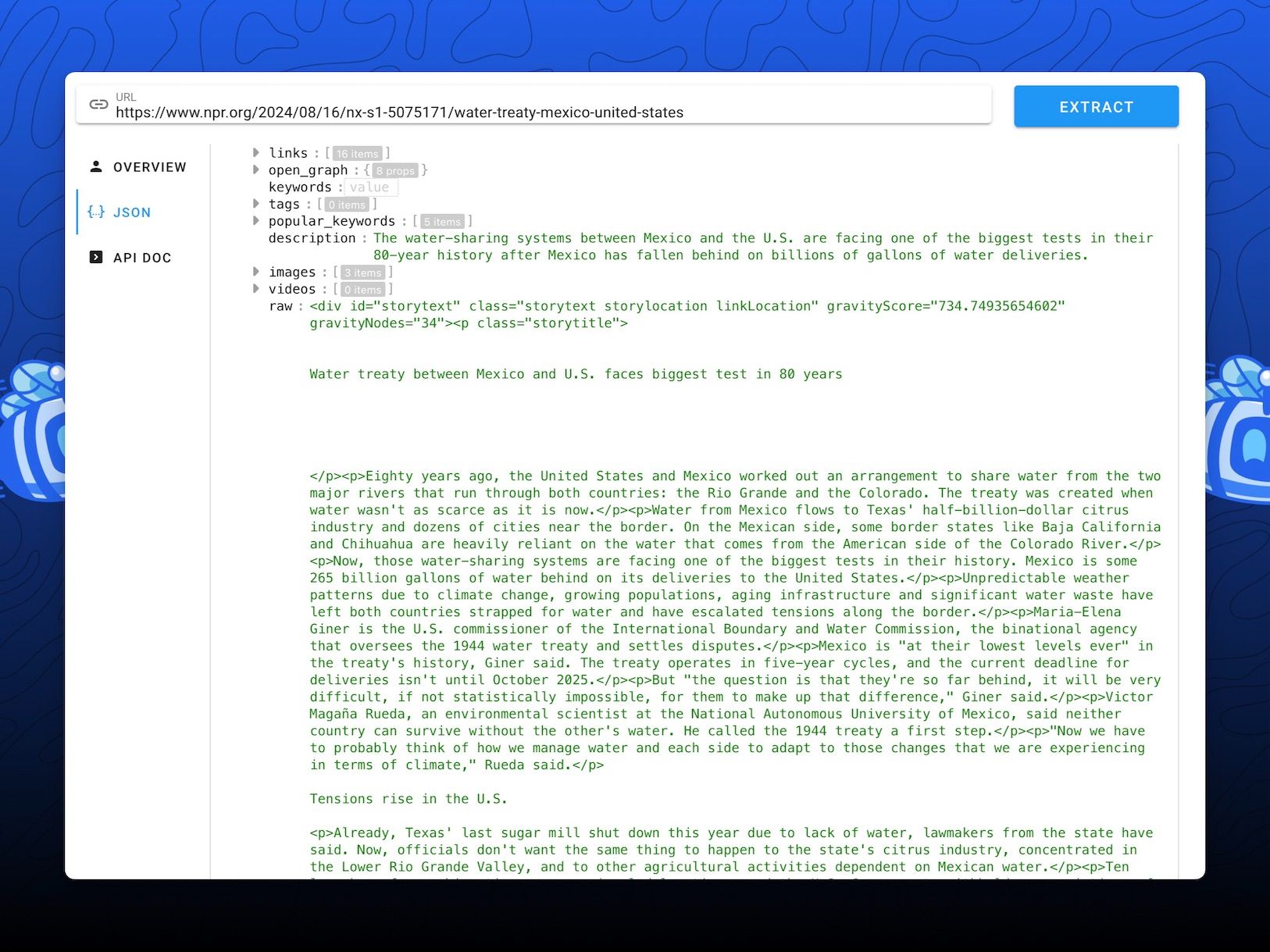
For a complete view of all extracted data, including metadata, click on the "JSON" tab. This will show you the full API response, which can be useful for more detailed analysis or debugging.
 Part 3: Integrating with Other Tinq.ai Tools
The true power of the Article Extractor comes when combined with other Tinq.ai tools. Here's how you can create a comprehensive content analysis and creation workflow:
Rewriter & Paraphraser:
- Extract an article, then use the rewriter to create a unique version while maintaining the core information.
- Use case: Creating derivative content or summarizing research findings in your own words.
Plagiarism Checker:
- After extraction, run the content through the plagiarism checker.
- Use case: Verifying the originality of content or finding similar sources for research purposes.
Summarizer:
- Feed the extracted article text into the summarizer for a concise overview.
- Use case: Quickly understanding the main points of long-form content or creating brief summaries for content curation.
Sentiment Analysis
- Analyze the extracted text to determine the overall emotional tone.
- Use case: Understanding public opinion on topics or analyzing product reviews at scale.
Example Workflow:
 1. Extract an article using the API or web interface.
2. Summarize the content to get the key points.
3. Check the summary for plagiarism to ensure originality.
4. Rewrite or paraphrase the summary to create a unique piece of content.
5. Analyze the sentiment of both the original article and your rewritten version.
1. Extract an article using the API or web interface.
2. Summarize the content to get the key points.
3. Check the summary for plagiarism to ensure originality.
4. Rewrite or paraphrase the summary to create a unique piece of content.
5. Analyze the sentiment of both the original article and your rewritten version.
This workflow allows you to rapidly process, analyze, and create content while keeping originality and understanding the emotional context.
Conclusion
The Tinq.ai Article Extractor, whether used via API or web interface, is a powerful tool for content analysis and creation. By integrating it with other Tinq.ai tools, you can create sophisticated workflows that streamline research, content creation, and data analysis tasks. As you become more familiar with these tools, you'll discover countless ways to leverage them in your specific field or industry.
Remember to always respect copyright laws and terms of service when extracting and using web content. Happy extracting!
Related Posts



How to write essays with Tinq.ai's AI-based writing assistant
Sometimes, writing essays may not be the most straightforward thing to do. Especially when the topic is assigned.
For this reason, having guidance on where to get started is primordial when writing an essay. In order to do that, AI tools have become prev
Unify all your datasources and give your AI the context it needs.
Connect Google Drive, SharePoint, Notion, CRMs, wikis, and more—securely indexed and instantly usable in ChatGPT, Claude, Gemini, or any AI assistant.